
What XLOOKUP Actually Does
XLOOKUP searches for a value in one range, then returns a matching value from a different range — and unlike VLOOKUP, those two ranges don’t have to be side by side or in any particular order. It can search left, right, up, or down, which fixes the two biggest limitations VLOOKUP has always had.
If you already know VLOOKUP, XLOOKUP does the same core job but without the column-counting and left-side restrictions that cause most VLOOKUP errors. This guide covers the syntax, six real examples, common errors, and when XLOOKUP is worth switching to over VLOOKUP or INDEX-MATCH.
Syntax
| Argument | What it means |
|---|---|
| lookup_value | The value to search for |
| lookup_array | The range containing the values to search through |
| return_array | The range containing the values to return — can be anywhere relative to lookup_array, left or right. |
| [if_not_found] | Optional. What to show if no match is found, instead of the default #N/A error |
| [match_mode] | Optional.0 = exact match (default),-1 = exact or next smallest,1 = exact or next largest,2 = wildcard match |
| [search_mode] | Optional.1 = search first to last (default),-1 = search last to first,2 / -2 = binary search |
Note: XLOOKUP only works in Microsoft 365 and Excel for the web — it’s not available in Excel 2019 or earlier. Watch 👇 this video
How to Get Microsoft Excel for Free | Free Microsoft Office | Microsoft Office 365
XLOOKUP vs VLOOKUP vs INDEX-MATCH
Here’s how XLOOKUP actually compares to VLOOKUP and INDEX-MATCH, so you can decide when it’s worth switching.
| XLOOKUP | VLOOKUP | INDEX-MATCH | |
|---|---|---|---|
| Can look left of the search column? | ✅ Yes | ❌ No | ✅ Yes |
| Breaks if you insert a new column? | ❌ No | ✅ Yes (it will) | ❌ No |
| Available in older Excel versions? | ❌ 365/2021+ only | ✅ Yes | ✅ Yes |
| Handles errors gracefully? | ✅ Built-in [if_not_found] | Needs IFERROR wrapper | Needs IFERROR wrapper |
| Can return an entire row/column at once? | ✅ Yes | ❌ No | ❌ No |
| Match modes available | 4 modes | 2 modes | 3 modes |
Bottom line: if you’re on Excel 365, XLOOKUP is the better default choice for almost everything — it’s more flexible and less fragile than VLOOKUP. The only reason to still use VLOOKUP is compatibility with older Excel versions or files you’re sharing with people who don’t have 365.
When to Use XLOOKUP
Use it any time you need to find and retrieve matching data — especially when your lookup column isn’t conveniently on the left, when you want to pull back multiple columns at once, or when you want a cleaner way to handle “not found” results without wrapping everything in IFERROR.
What It Returns
The value (or array of values) found in return_array, matching the row of your lookup_value in lookup_array. If no match is found and [if_not_found] is omitted, it returns #N/A.
Extra Notes Before You Start
- If [if_not_found] is omitted and no match exists, you’ll get #N/A.
- lookup_array and return_array must be the same size — mismatched ranges return #VALUE!.
- If XLOOKUP references a table in a closed workbook, you’ll get #REF! — the other file must be open.
- XLOOKUP works on unsorted data in every match mode — unlike VLOOKUP’s approximate match, which requires ascending order.
Examples of the Excel XLOOKUP Function
Example 1: Basic Usage (Exact Match)
You want to fetch the salary for Employee ID 105.
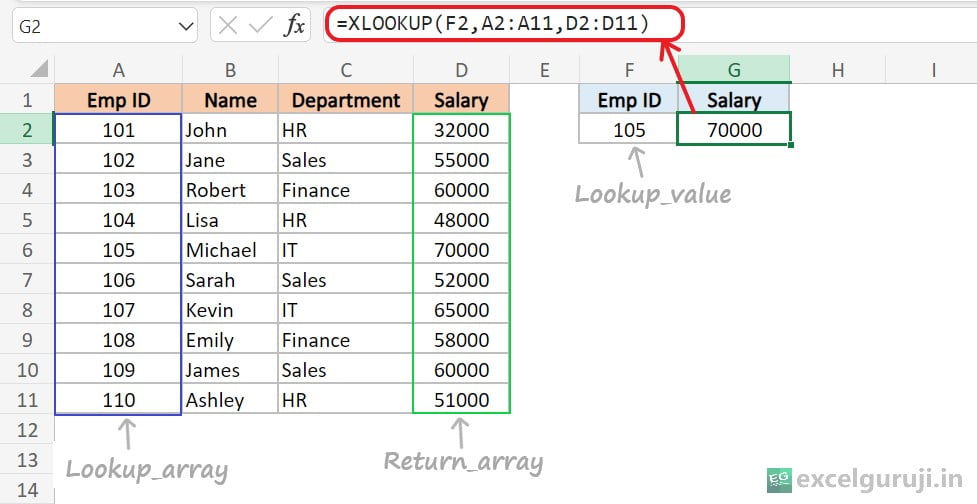
Formula: =XLOOKUP(F2,A2:A11,D2:D11)
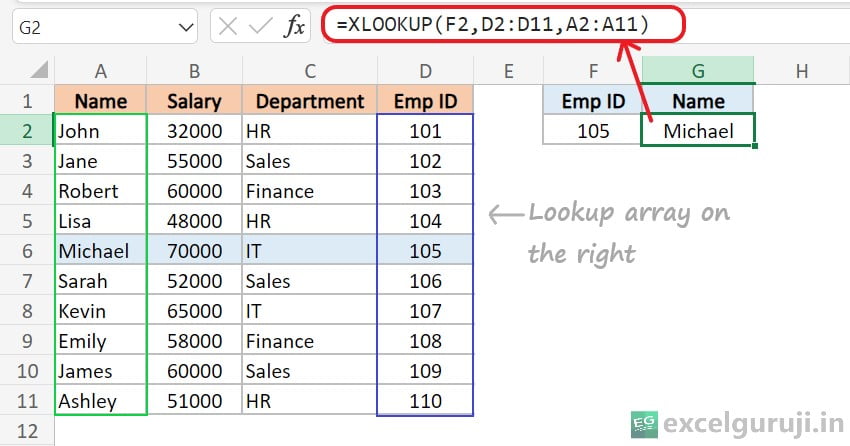
Because lookup_array and return_array are separate arguments, XLOOKUP can look in either direction. If your ID column sits to the right of the name column, you can still look up a name by ID — something VLOOKUP simply can’t do.
Example 2: Find and Fetch an Entire Record
Instead of retrieving one value, you want XLOOKUP to pull back an entire row at once.
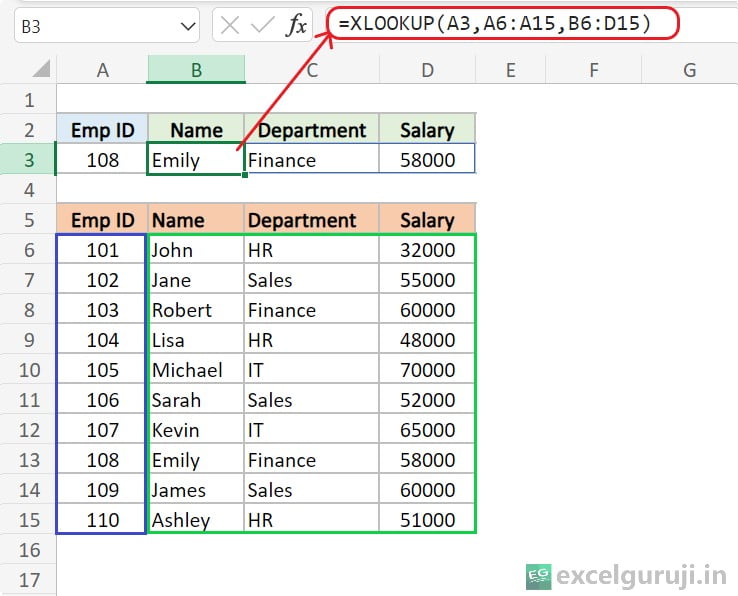
Formula: =XLOOKUP(A3, A6:A15, B6:D15)
- A3 — the value you’re searching for
- A6:A15 — the range XLOOKUP searches
- B6:D15 — the range it returns from, spanning multiple columns at once
Example 3: When the Lookup Value Isn’t Found
By default, an unmatched lookup returns an error.
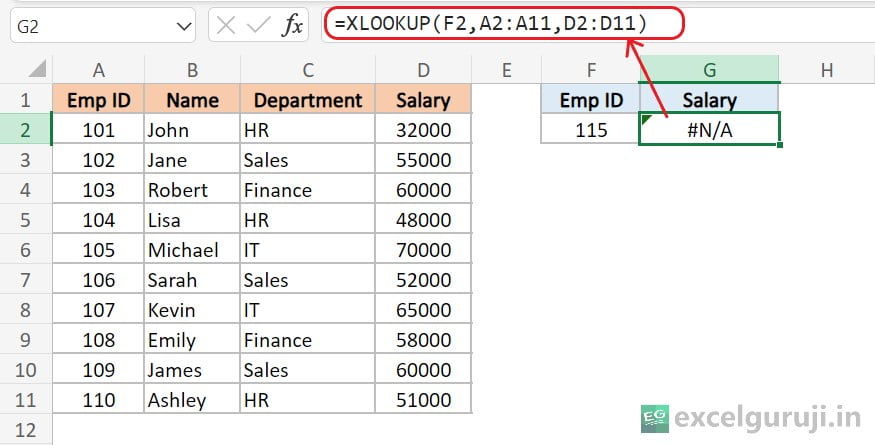
Use the fourth argument to control exactly what shows instead:
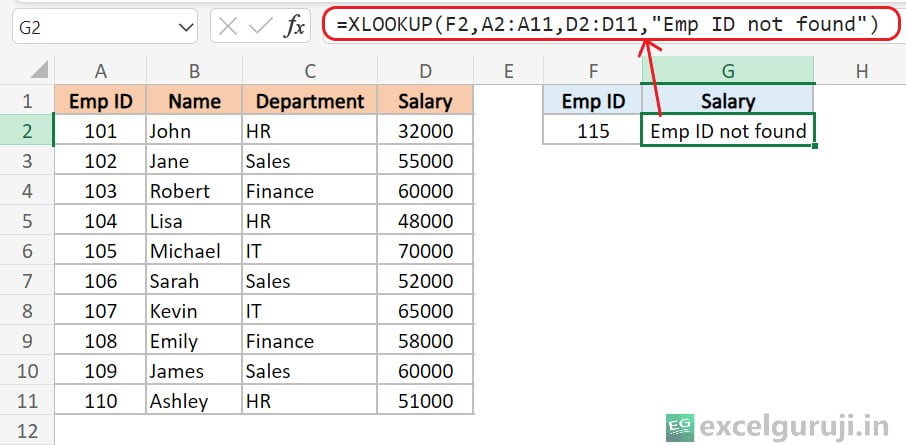
You can hardcode a message like “Not Found” , reference another cell, or even use a formula as the fallback value.
Example 4: Approximate Match Modes
XLOOKUP has four match modes, compared to VLOOKUP’s two:
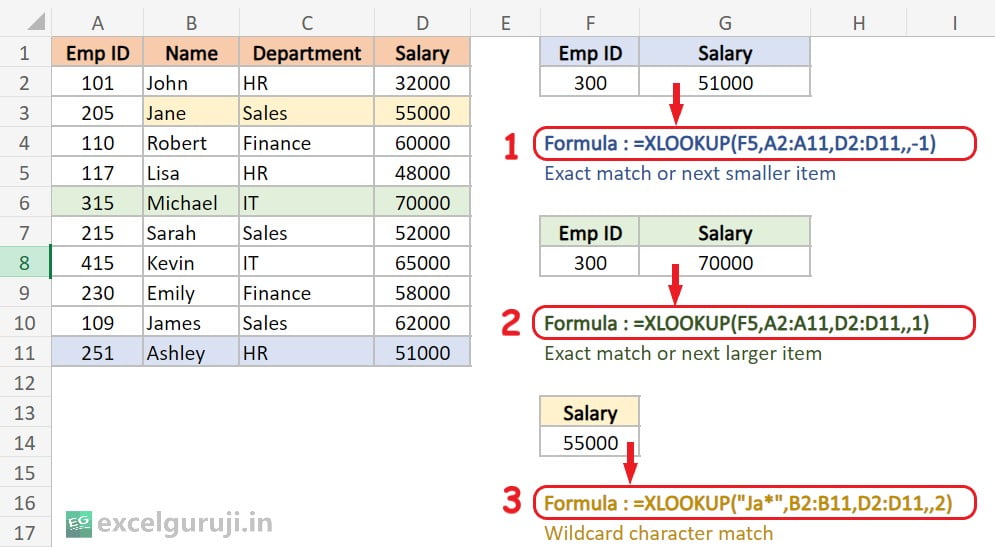
Formula 1: =XLOOKUP(F2,A2:A11,D2:D11, ,-1)
Match mode -1 = exact match or next smallest. Searching for Emp ID 300 (which doesn’t exist) returns the closest ID below it — 251, with its salary of 51000.
Formula 2: =XLOOKUP(F2,A2:A11,D2:D11, ,1)
Match mode 1 = exact match or next largest. Same search now returns Emp ID 315, the closest match above 300, with salary 70000.
Formula 3: =XLOOKUP(“Ja*”,B2:B11,D2:D11,,2)
Match mode 2 = wildcard match. This searches for any name starting with “Ja” and returns the first match’s salary — useful when you only know part of the text you’re searching for.
A genuine advantage: XLOOKUP handles unsorted data correctly in every mode, unlike VLOOKUP’s approximate match, which silently gives wrong results on unsorted data.
Example 5: Search Order — First to Last or Last to First
By default XLOOKUP searches top to bottom. Set the sixth argument to -1 to search bottom to top instead — useful when you want the most recent matching entry in a log or transaction list, not the first one.
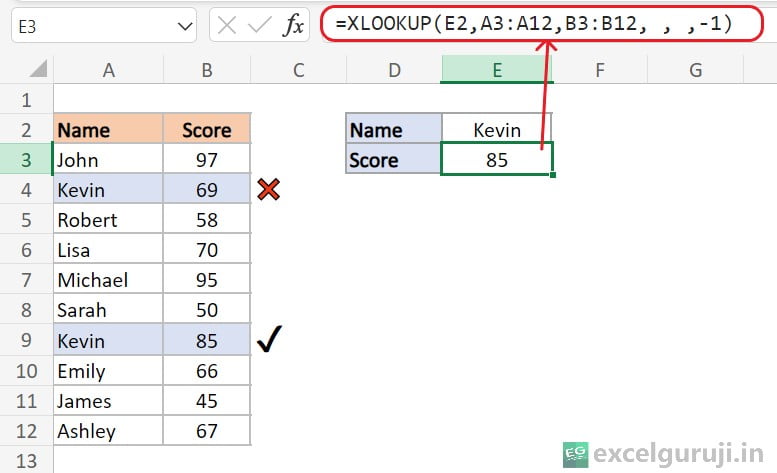
This is useful for finding the most recent match in a log or transaction list, rather than the first one that appears.
Example 6: Two-Way Lookup (Nested XLOOKUP)
You have a report card with Math, Science, and English scores, and want to find one specific student’s score in one specific subject.
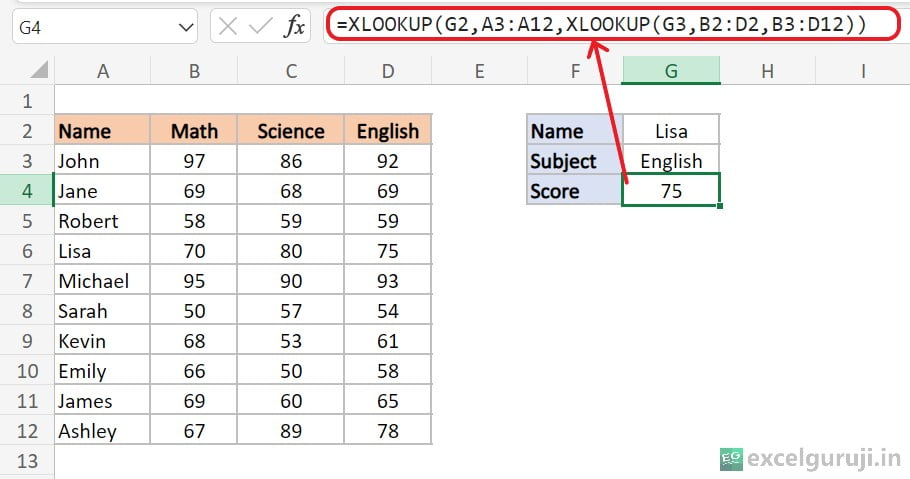
Formula: =XLOOKUP(G2,A3:A12,XLOOKUP(G3,B2:D2,B3:D12))
The inner XLOOKUP finds which subject column matches G3 and returns that entire column of scores. The outer XLOOKUP then finds which row matches the student name in G2. Change either the student or the subject, and the formula still works — nothing is hardcoded to a specific row or column.
Common XLOOKUP Errors (And How to Fix Them)
#N/A — “No match found”
The default result when no match exists and [if_not_found] is omitted. Add a fourth argument like =XLOOKUP(A2,B:B,C:C,”Not found”) to replace the error with a clean message.
#VALUE! error
Happens when lookup_array and return_array are different sizes — e.g. one is 10 rows and the other is 12. Double-check both ranges match exactly.
#REF! error
Occurs when XLOOKUP references a table in another workbook that isn’t currently open. Open the source file, or bring the data into the same workbook.
Formula works in Excel 365 but breaks for a colleague
XLOOKUP doesn’t exist in Excel 2019 or earlier — check what version anyone you’re sharing the file with is using before relying on it.
Practice File
Practice with the interactive spreadsheet below — work through all six examples directly in your browser, no download needed. Note: there are four separate sheets inside.
Frequently Asked Questions (FAQs)
Can XLOOKUP perform case-sensitive searches?
No, it treats uppercase and lowercase as identical.
Does XLOOKUP work in Excel 2019?
No — it’s available in Microsoft 365 and Excel for the web only.
Can XLOOKUP handle multiple criteria?
Yes, by using array lookup and return values.
Is XLOOKUP faster than VLOOKUP?
Generally yes, especially on large datasets, and it’s more reliable since it doesn’t break when columns are inserted.
Can XLOOKUP do a reverse lookup?
Yes — swap the positions of lookup_array and return_array.
Other Related Excel Functions
Excel WRAPROWS Function: A Comprehensive Guide to Organizing Data Row-Wise
Mastering Data Transformation: A Guide to Excel TOROW Function for Effortless Row Arrangement
Mastering Excel FILTER Function: A Comprehensive Guide for Data Filtering